GuideBy TextParcelLast updated
How to export an iMessage conversation to PDF
Short answer
On a Mac, TextParcel turns a whole iMessage conversation into a searchable PDF, with each message’s date, time, and sender, its replies, reactions, and photos, plus a spreadsheet of the same messages. Tick the conversation, click Export…, and the PDF’s cover page counts what’s in it. TextParcel exports what’s in Messages on your Mac, so check that your Mac has the whole conversation first. For a quick copy without the counts, Messages can print a conversation to PDF for free.
Before you begin
What you need
- A Mac with macOS 14 or later, Apple silicon or Intel.
- The conversation in the Messages app on that Mac. TextParcel reads the Mac’s copy, not your iPhone.
- A minute to check the Mac has all of it. Open the conversation on your iPhone and on your Mac. If the Mac’s copy starts later or has gaps, sync your Mac with your iPhone first.
- For texts with Android phones: they reach the Mac only if your iPhone forwards them, so turn on forwarding.
The free way: print the conversation from Messages
Messages on your Mac can print a conversation, and the Mac’s print window can save it as a PDF instead of printing it. Apple lists Command-P as “Print the conversation” in its keyboard shortcuts for Messages.
- Open Messages on your Mac and click the conversation.
- Press Command-P.
- In the print window, click PDF (or the arrow beside it) and choose Save as PDF. Name the file and choose where to save it. Apple’s steps: Save a document as a PDF on Mac.
It’s a quick copy for reading. It doesn’t add a cover page or a count of the messages, so open the PDF and check it before you rely on it: does it start where the conversation starts, does each message show its date and time, and did the photos come through?
Export the whole conversation with TextParcel
TextParcel reads a copy of the Messages on your Mac and writes the conversation to a folder you choose. Nothing is uploaded. The free version does every step below and exports the 100 most recent messages across whatever you select; a key removes the limit.
-
Let TextParcel read your Messages
Open TextParcel, tick I’m authorized to access these messages, and click Continue. A window opens with your Messages folder already selected. Click Open. There’s nothing to change in System Settings.
If you close that window, TextParcel shows the screen below. Keep Choose the Messages folder picked and click Continue to open it again. More on this step: letting TextParcel read your Messages.
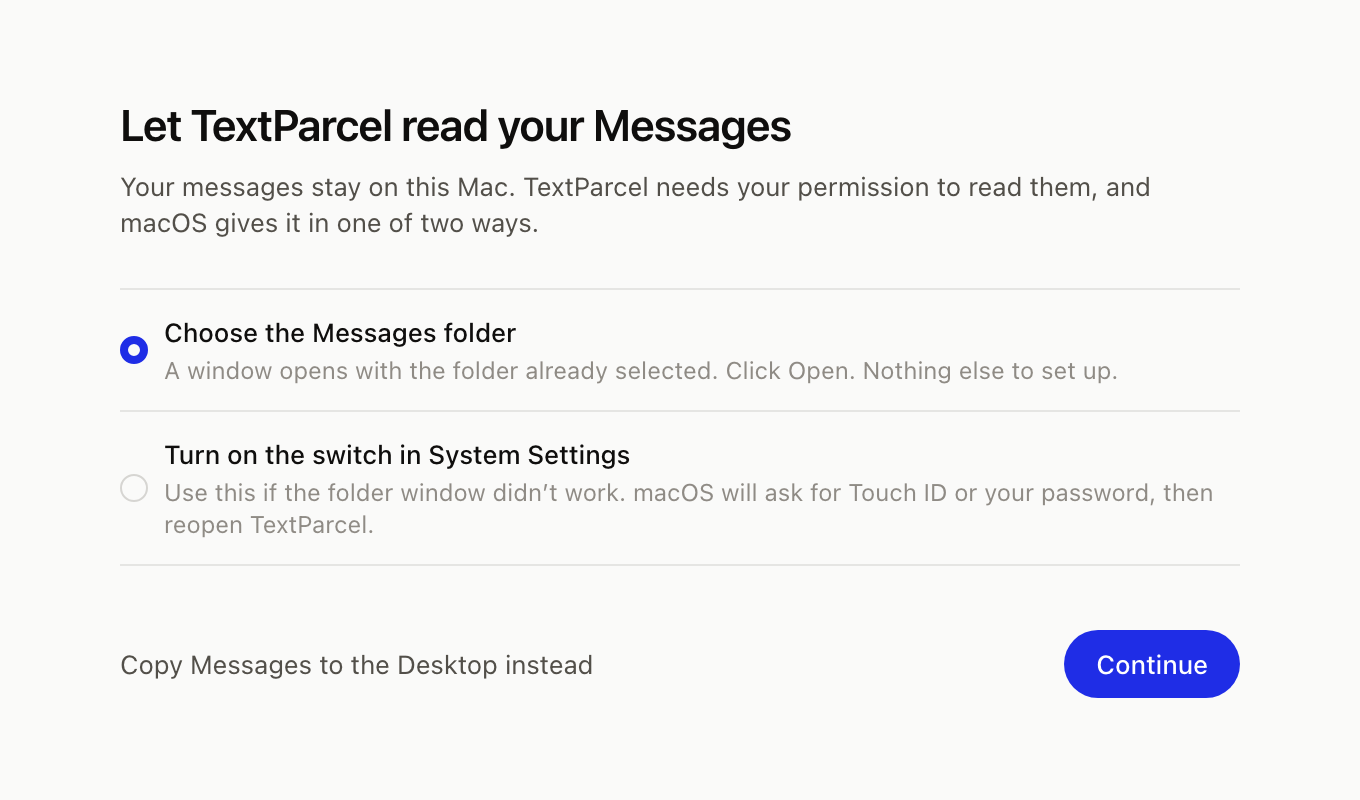
The screen that opens the folder window again. The switch in System Settings is only for when the folder window doesn’t work. -
Tick the conversation and check its dates
Your conversations are listed on the left, newest first. Type a name or number in Search to find one, and tick it. Click its name to preview it: the line under the name shows the phone number or email, the service, how many messages your Mac has, and the dates they cover.
If those dates start later than the conversation did, your Mac doesn’t have the older messages yet. Sync your Mac, then click Refresh above the list.
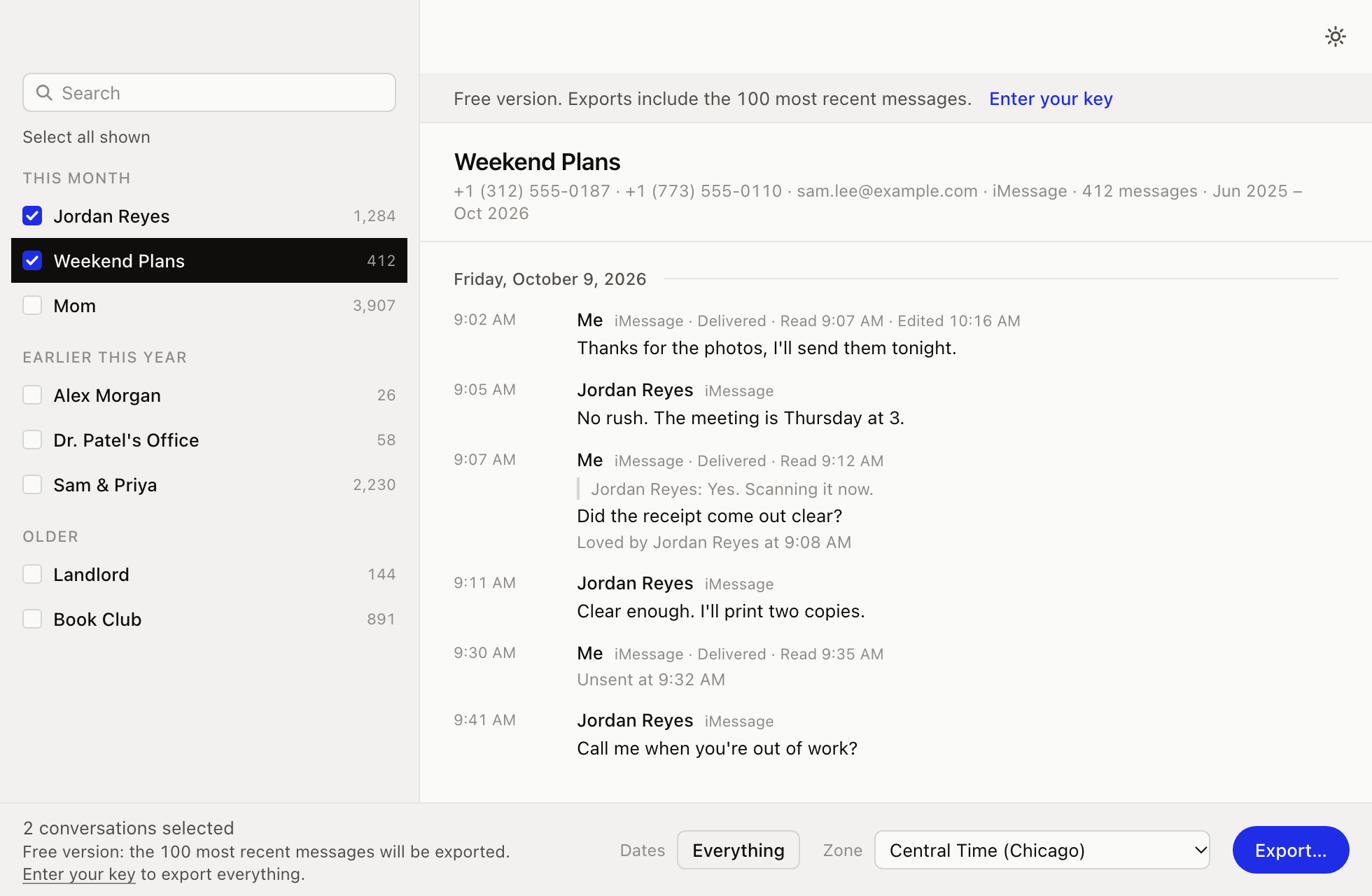
Two conversations ticked, one previewed. The line under the name says how many messages this Mac has and the dates they cover. -
Choose the dates and the time zone
At the bottom of the window, Dates is set to Everything. To export part of the conversation, click it, choose Only these dates, and set a start and an end. Zone starts as your Mac’s time zone; change it if the person reading the PDF needs another. The cover page names the zone, and every time in the PDF uses it.
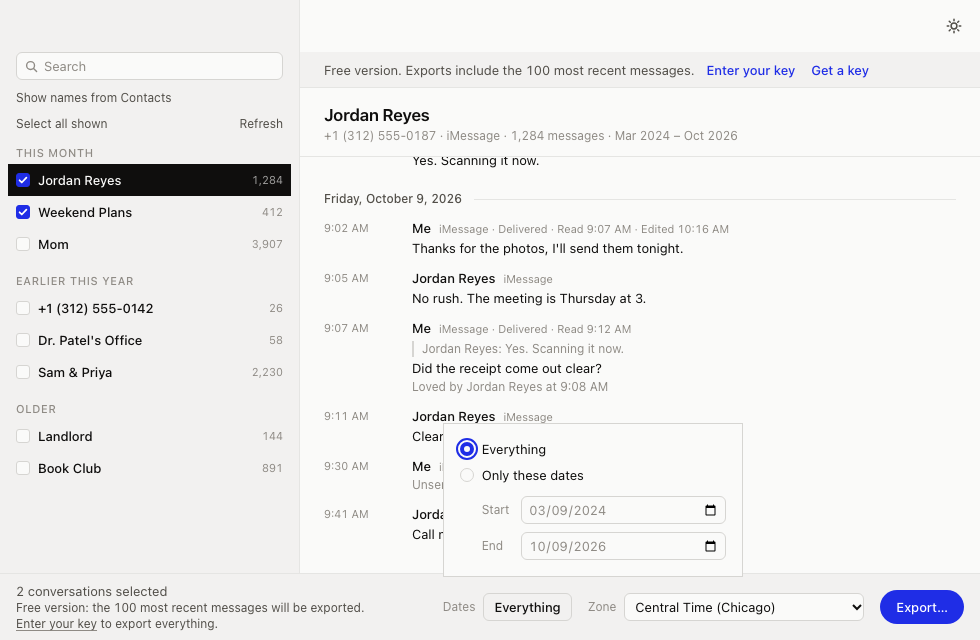
Everything is the default. The zone you pick is printed on the cover page. -
Click Export… and open the folder
Click Export… and choose where to save it (the Desktop, unless you pick another place). When it’s done, TextParcel shows the number of conversations, messages, and attachments, and the dates they cover, with the line “These counts match the cover page of the PDF.” Click Open Folder to see the files.
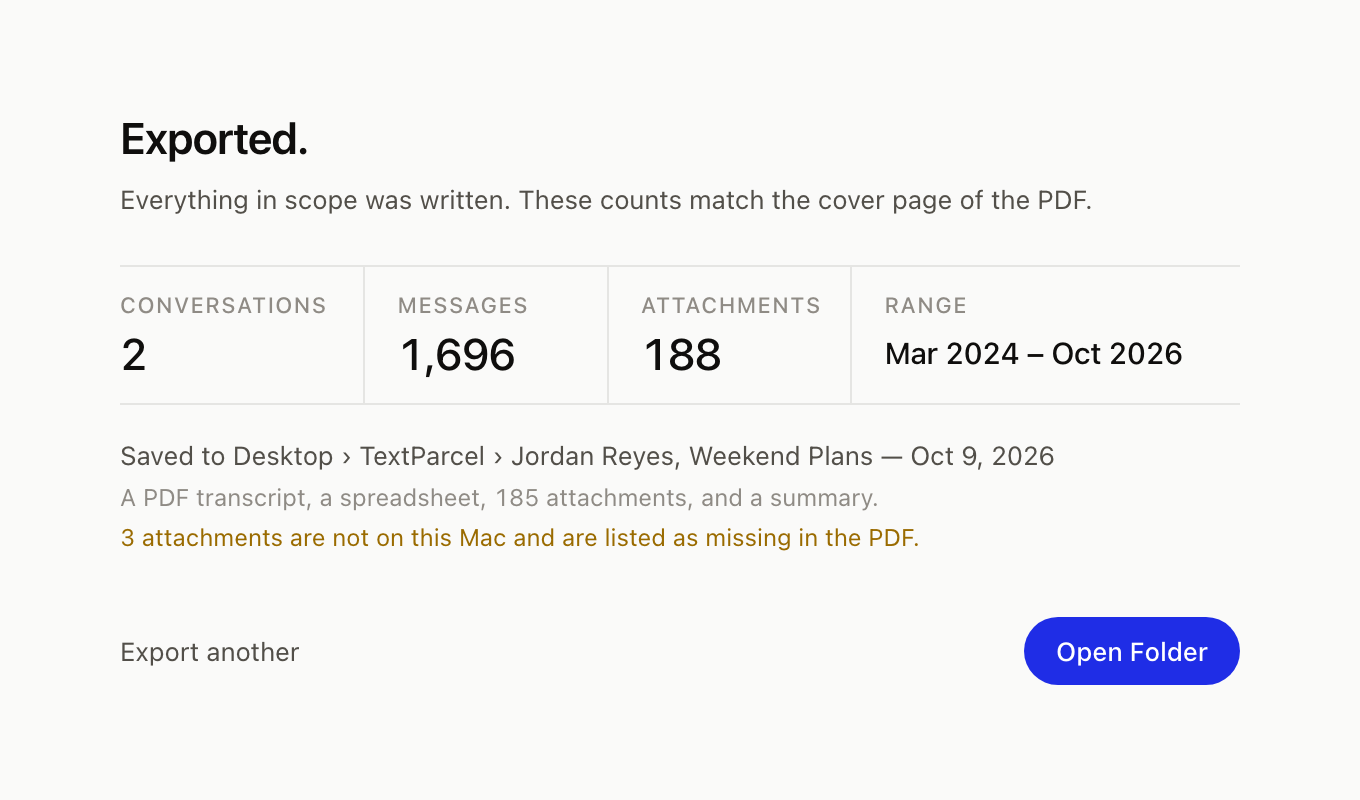
The Exported screen. If any photos weren’t on this Mac, it says how many.


Free for 100 messages. $19 once for everything.
What’s in the PDF
The PDF opens with a cover page that says what’s in it, then the conversation, page by page.
- The cover page lists each conversation with its people and service, the time zone, the first and last message, the dates you chose, and the counts: messages, reactions, group events, attachment files found, and anything skipped.
- Who and when. Every message shows its date and time, the sender’s name with the phone number or email behind it, the service it went by, such as iMessage, and when it was delivered and read, where Messages recorded that.
- Replies and reactions. A reply shows the message it answered, and each reaction sits under the message it was left on.
- Edited and unsent. An edited message shows its earlier versions where Messages kept them, and an unsent one is marked.
- Photos and files appear where they were sent, with the file name and size. The originals are saved beside the PDF.
- Searchable text. The messages are real text, so you can search the PDF and copy from it in Preview or any PDF app.
- Page footers name the conversation and the page number on every page.
The sample’s cover page counts 30 messages, 7 reactions, 1 group event, and 3 of 3 attachment files found, with nothing skipped. See the whole sample export, or open the sample PDF.
Need it on paper? Here’s how to print text messages from your iPhone or your Mac.
The spreadsheet with the same messages
Beside the PDF, TextParcel writes a spreadsheet with one row per message, reaction, and group event. Each row has the time in UTC and in the zone you chose, the sender’s number or email, the service, the text, and whether the message was edited or unsent, so you can sort, filter, and count. Its counts match the cover page.
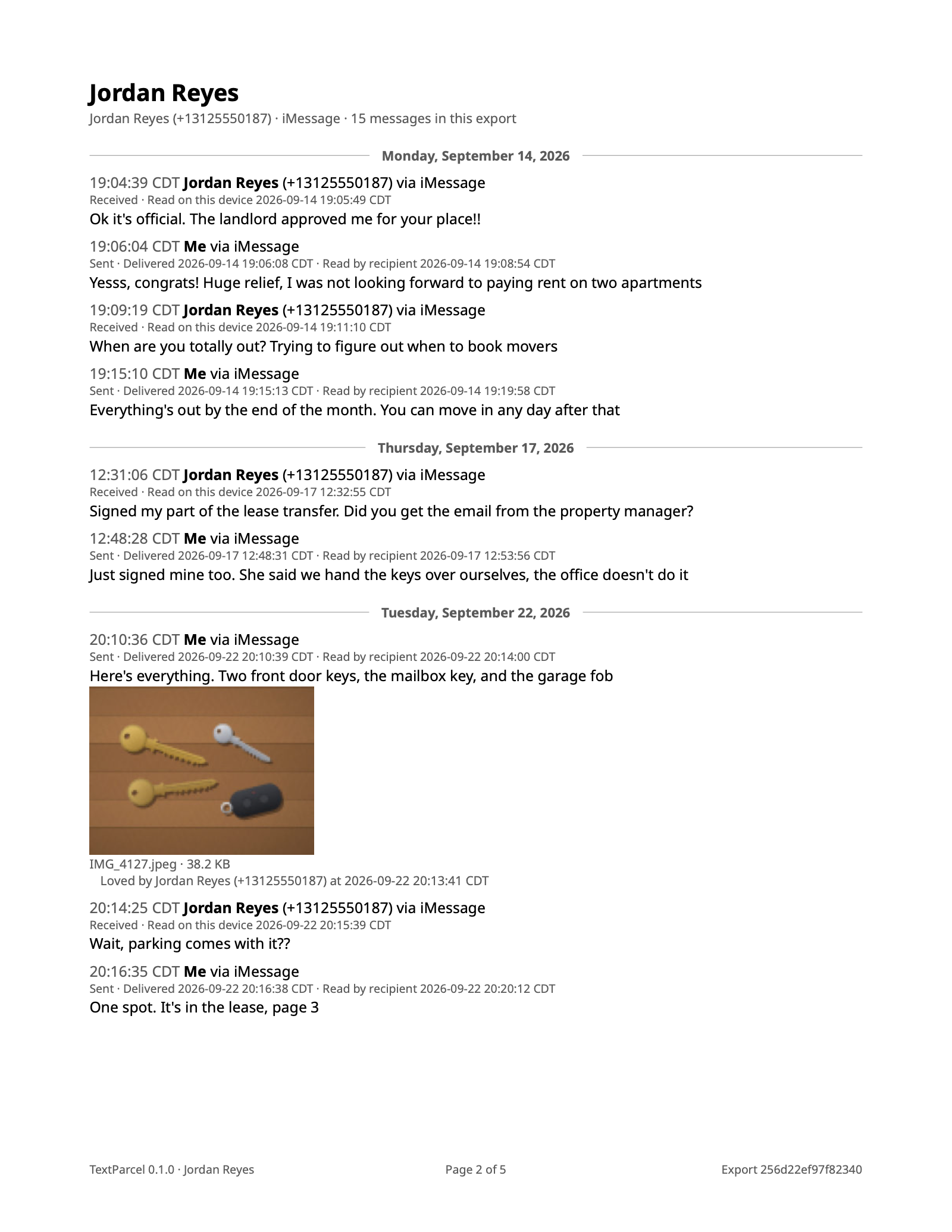
Same message, same count
| message_id | date_local | sender_name | item_type | text |
|---|---|---|---|---|
| 96 | 2026-09-22T20:10:36.599-05:00 | Me | Text | [attachment: IMG_4127.jpeg] Here's everything. Two front door keys, the mailbox key, and the garage fob |
| 97 | 2026-09-22T20:13:41.016-05:00 | Jordan Reyes | Reaction | Loved an image |
| 98 | 2026-09-22T20:14:25.966-05:00 | Jordan Reyes | Text | Wait, parking comes with it?? |
| 99 | 2026-09-22T20:16:35.228-05:00 | Me | Text | One spot. It's in the lease, page 3 |
Page 2 starts the Jordan Reyes conversation, and its heading says 15 messages in this export. The spreadsheet has 16 rows for Jordan Reyes: those 15 messages and Jordan’s one reaction. Download the sample spreadsheet to check.
Photos that say “not on this Mac”
Messages can keep a photo in iCloud without a copy on your Mac. TextParcel can’t copy a photo that isn’t there: the preview shows [photo: not on this Mac] where it was sent, the PDF lists it as missing, and the Exported screen says how many there are. To bring them down before you export:
- Open the Messages app on your Mac and open the conversation.
- Scroll to the photo. That usually makes your Mac download it.
- Click Refresh in TextParcel and export again.

Several conversations at once
Tick more than one conversation and they go into one export. The PDF groups them by conversation, in the cover page’s order: each starts on a new page under its name, with its people, its service, and its message count, and each page’s footer names its conversation. The spreadsheet holds every row, with the conversation’s name on each one.
The sample export is two conversations in one PDF: Jordan Reyes, a one-to-one conversation, and Weekend Plans, a group. With the free version, the 100-message limit counts everything you select together, not each conversation.
Questions
Can you export a whole iMessage conversation?
Yes, on a Mac. TextParcel exports every message your Mac has for that conversation into one PDF and a matching spreadsheet, and the cover page counts what’s in it. If your Mac doesn’t have the older messages, sync it with your iPhone first. The free version exports the 100 most recent messages; a key exports the rest.
How can I convert text messages to PDF for free?
On a Mac, open the conversation in Messages, press Command-P, and choose Save as PDF from the PDF menu in the print window. TextParcel’s free version also makes a full export, with the cover page, the spreadsheet, and the photos, of your 100 most recent messages across whatever you select. A key removes the limit.
Is there a way to get iMessage history?
Yes, if it’s still on one of your devices. When Messages in iCloud is on, on your iPhone and your Mac with the same Apple Account, your Mac usually catches up with the history your iPhone has, and TextParcel can export it from there. Here’s how to sync them. TextParcel doesn’t bring back deleted messages.
Can I use the iMessage exporter on Windows?
TextParcel is a Mac app. It needs a Mac with macOS 14 or later, Apple silicon or Intel, and it exports the Messages on that Mac.