GuideBy TextParcelLast updated 8 min read
How to print text messages from your iPhone
Short answer
Apple’s iPhone guide lists no way to print a whole conversation from Messages. For a few messages, take screenshots and print them from Photos, or copy the words into Notes and print the note; both are free and need no app. For the whole conversation with the date and time on every message, get it onto your Mac with Messages in iCloud, export it to a PDF with TextParcel, and print that.
- 0:00 Way 1: Screenshots
- 0:30 Way 2: Copy into Notes
- 0:42 Way 3: The whole conversation through your Mac
- 1:12 What prints on every message
- 1:23 Print the PDF
Three ways at a glance
Two free ways that need only your iPhone, and one that uses your Mac to print the whole conversation.
-
Way 1
Screenshots
- Needs
- Your iPhone
- Dates and times
- Every so often
- Good for
- A few messages
- Cost
- Free
-
Way 2
Copy into Notes
- Needs
- Your iPhone
- Dates and times
- Not included
- Good for
- A few lines of text
- Cost
- Free
-
Way 3
The whole conversation, through your Mac
- Needs
- A Mac with your messages
- Dates and times
- On every message
- Good for
- A long thread, or all of it
- Cost
- Free for your 100 most recent messages, then $19 once
Way 1: print screenshots from Photos
When you only need a few messages on paper, screenshots are the quickest way, and they need nothing but your iPhone.
-
Take the screenshots
Open the conversation in Messages. Quickly press and release the side button and the volume up button at the same time. On an iPhone with a Home button, press the Home button and the side button. Scroll and repeat for every message you need.
-
Find them in Photos
Screenshots are saved to your photo library. In Photos, open Collections, then Media Types, then Screenshots.
-
Select them and tap Print
Tap Select, tap each screenshot you want, tap the Share button, then tap Print. If you don’t see Print, swipe up.
-
Choose your printer
Tap No Printer Selected, choose your printer, and tap Print. The printer needs AirPrint and has to be on the same Wi-Fi network as your iPhone.
Good to know
- Messages shows the time only every so often, so many screenshots carry no time, and some no date.
- A long thread means hundreds of screenshots to take, keep in order, and print.
- Apple’s example for the screenshot’s Full Page option is a whole webpage in Safari; Apple doesn’t say it works in Messages.
Way 2: copy the words into Notes
If you only need what was said, not how it looked, copy the words into a note and print that. It needs nothing but your iPhone.
-
Copy the words
In the conversation, touch and hold a message, tap Select, select the words you want, then tap Copy.
-
Paste them into a note
Open Notes, start a new note, and paste. Go back to Messages and repeat for each message you need.
-
Print the note
Tap the Share button, then tap Print. If you don’t see Print, tap the More button first. Choose your printer and tap Print.
It’s free and fine for a few lines, but you get the words without the bubbles or the times. Apple’s own tip, in its guide to forwarding messages, is that a screenshot shows “the message bubbles and timestamps just as they appear in a conversation.”
Way 3: the whole conversation, through your Mac
When a thread is far too long to screenshot, or you need full date and time stamps on every message, print the entire text thread from your Mac as one clean document.
TextParcel is a Mac app. It reads the Messages on your Mac, not your iPhone, so the conversation has to be on your Mac first. Then it turns the conversation into a PDF you can print.
Before you begin
- A Mac with macOS 14 or later, Apple silicon or Intel.
- Messages in iCloud turned on for both your iPhone and your Mac, with the same Apple Account. It uses your iCloud storage, and a message you delete on your iPhone is deleted on your other devices too.
- On your iPhone: open Settings, tap your name, tap iCloud, then tap Messages (if it isn’t listed, tap See All under Saved to iCloud) and turn on Use on this iPhone.
- On your Mac: open Messages, choose Messages › Settings, click iMessage, and check Enable Messages in iCloud.
- A minute to check the Mac has it all. Open the conversation on both. If the Mac’s copy starts later or has gaps, sync your Mac with your iPhone first.
- The free version does every step below and exports your 100 most recent messages across whatever you select. A key for everything is $19, once.
-
Choose the Messages folder
Open TextParcel, tick I’m authorized to access these messages, and click Continue. A window opens with your Messages folder already selected: click Open. If you close that window, click Continue on the screen below to open it again. More help: letting TextParcel read your Messages.
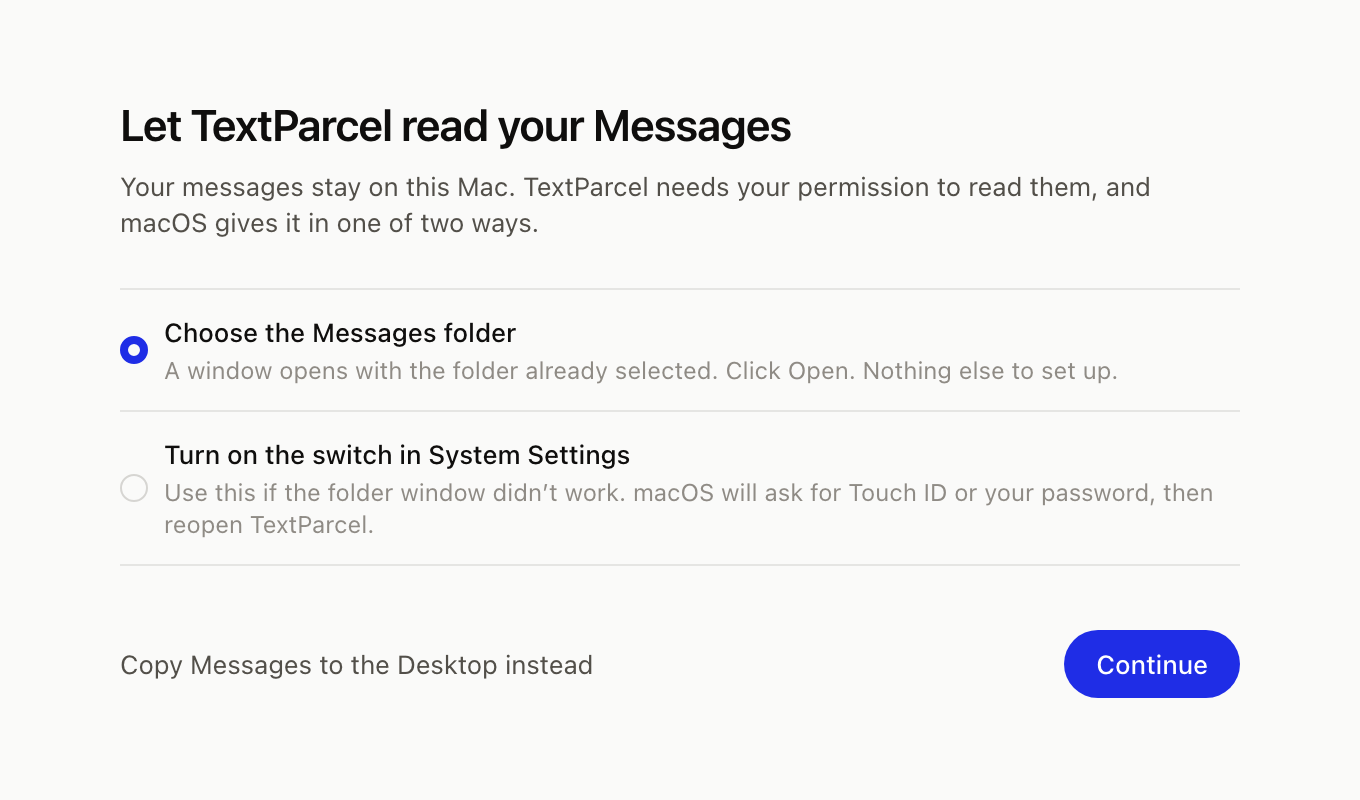
The switch in System Settings is only for when the folder window doesn’t work. -
Tick the conversation
Your conversations are listed on the left, newest first. Type a name or number in Search and tick the one you want to print. Click its name to preview it: the line under the name shows how many messages your Mac has and the dates they cover.
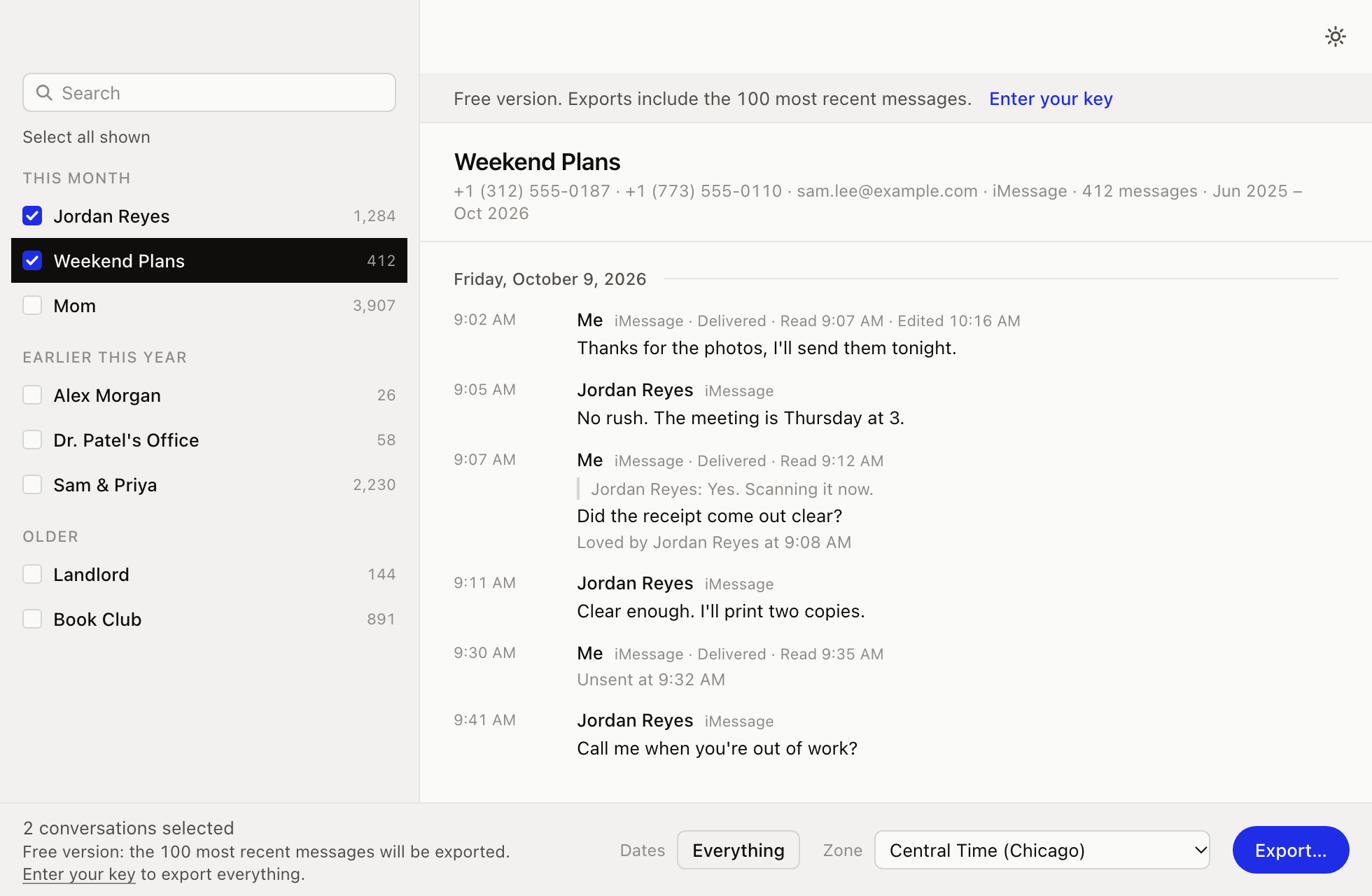
Example conversations. Names and numbers are made up. -
Only need some of it? Set the dates
At the bottom of the window, Dates is set to Everything. To print part of a long thread, click it, choose Only these dates, and set a Start and an End. Zone is the time zone every time in the PDF uses; it starts as your Mac’s.
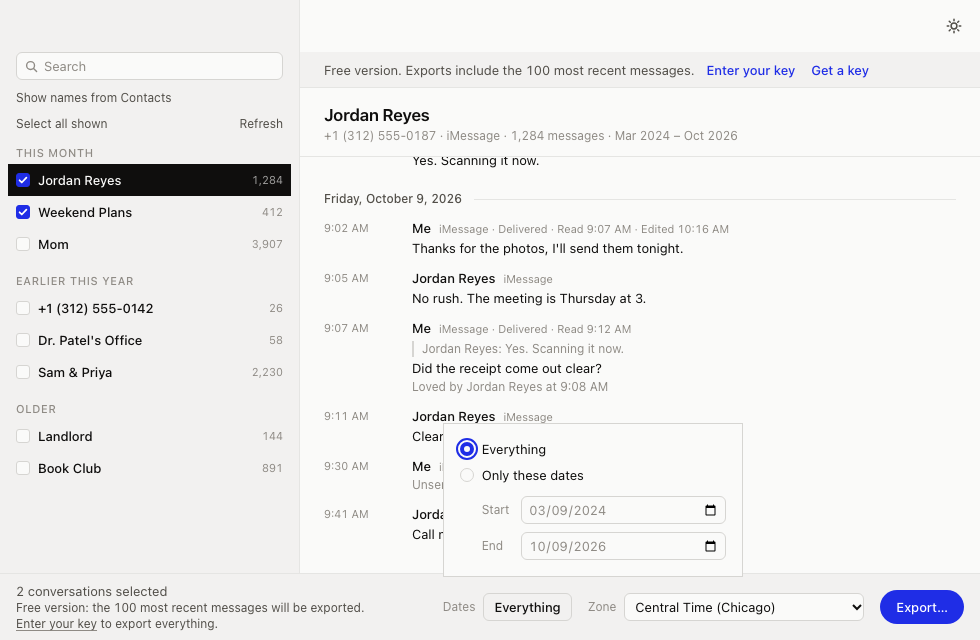
Everything is the default. Only these dates keeps just the messages between the dates you set. -
Click Export…
Click Export… and choose where to save it. TextParcel writes one folder with the PDF, a spreadsheet, and the original photos and files. The Exported. screen shows the counts, with the line “These counts match the cover page of the PDF.” Click Open Folder to find the PDF.
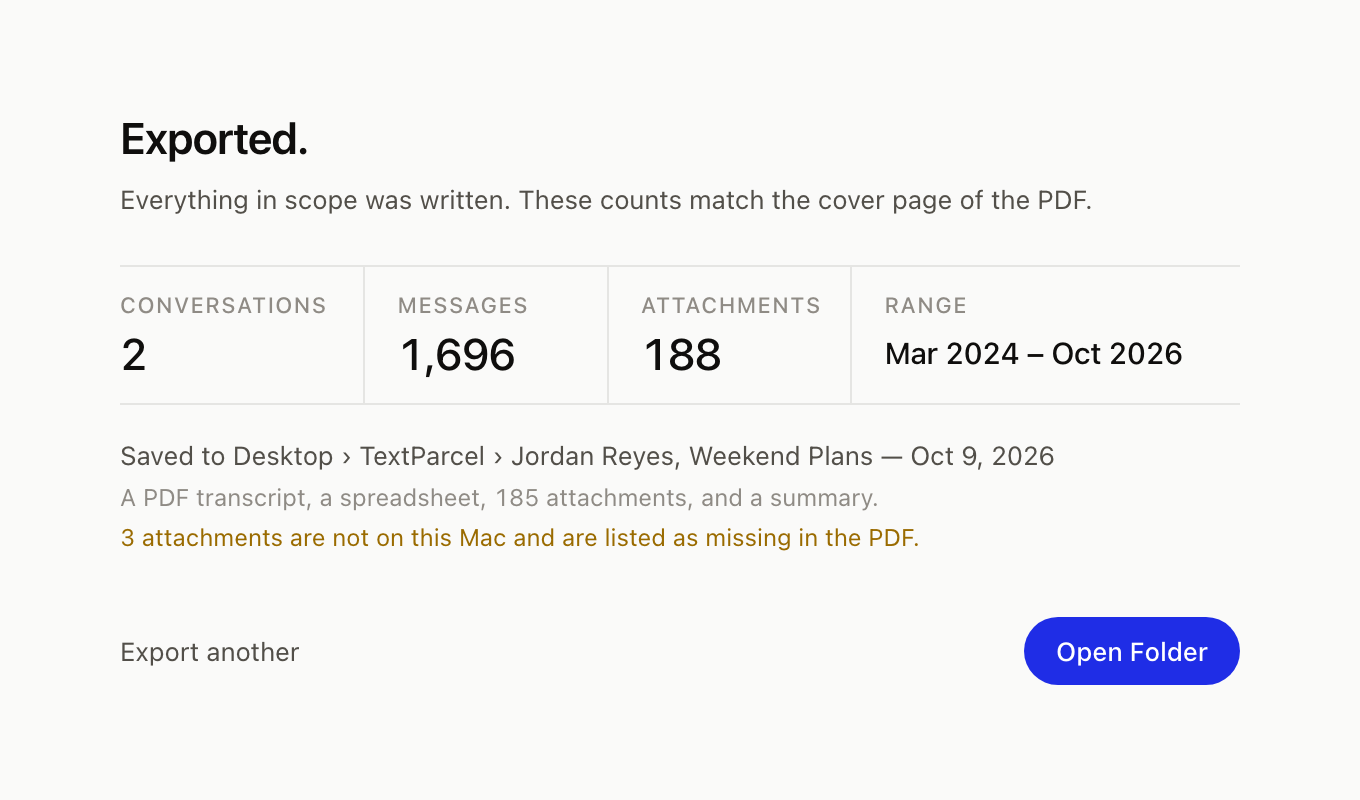
The Exported screen, with example counts. If any photos weren’t on this Mac, it says how many.


Free for 100 messages. $19 once for everything.
What prints on every message
This is part of a real page from the sample export, as it prints. Every message carries its own time, sender, and service, so the page still reads in order once it’s away from the phone.
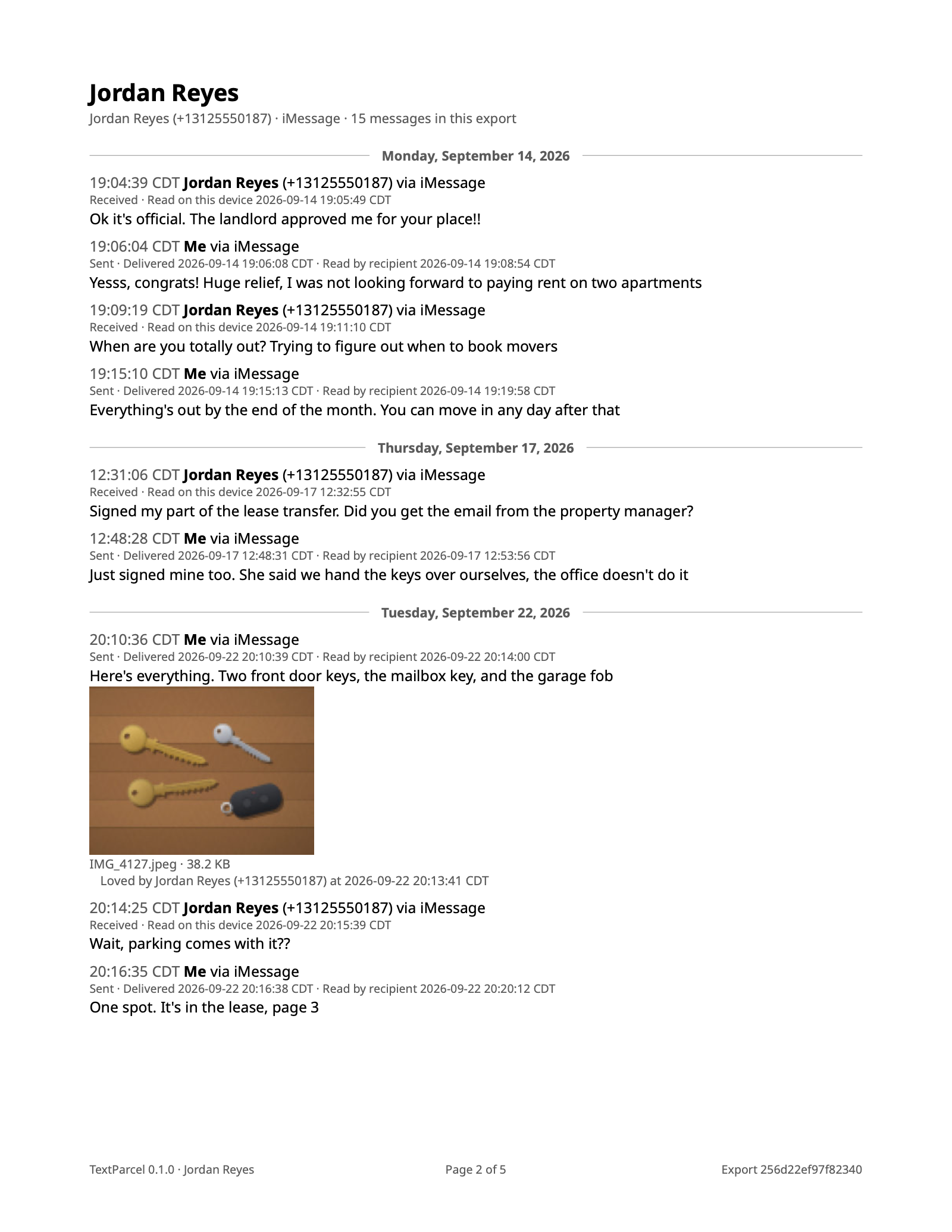
- The time and time zone
Each message starts with its time, here 20:10:36 CDT, under the day’s date.
- Delivered and read
Whether it was delivered and read, with the times, under the service it went by, such as iMessage.
- The photo, where it was sent
In line, with its file name and size. The original is saved beside the PDF.
- The reaction, under its message
Jordan’s Loved reaction sits under the photo it was left on, with who left it and when.
- Who sent it, with the number
The name, with the phone number or email behind it. Your own messages say Me.
Replies show the message they answered, and edits keep their earlier versions where Messages kept them. See the whole sample export.
Print the PDF
It prints like any other PDF, from your Mac or from your iPhone.
From your Mac
- Open the export folder and open the PDF in Preview.
- Choose File › Print, or press Command-P.
- Choose your printer and click Print.
From your iPhone
- Send the PDF to your iPhone by AirDrop or email, and open it.
- Tap the Share button, then tap Print. If you don’t see Print, swipe up.
- Tap No Printer Selected, choose an AirPrint printer on the same Wi-Fi network, and tap Print.
Only need a few days of it? Set Only these dates in TextParcel before you export (step 3 above), and the PDF holds just the messages between those dates.
If something’s missing
Older messages aren’t on the Mac
TextParcel exports what your Mac has. If the conversation starts later on your Mac than on your iPhone, open Messages on the Mac, choose Messages › Settings, click iMessage, and click Sync Now, then click Refresh in TextParcel. A long history can take a while to arrive. Every sync step is on the Support page.
A photo says “not on this Mac”
A photo kept only in iCloud shows as [photo: not on this Mac] in TextParcel’s preview, and the Exported screen says such photos are listed as missing in the PDF. Open the conversation in Messages on your Mac and scroll to the photo, which usually makes the Mac download it, then click Refresh and export again. More on photos marked “not on this Mac”.
Texts with Android phones
Green-bubble texts reach your Mac only if your iPhone forwards them. On your iPhone, open Settings, tap Apps, tap Messages, tap Text Message Forwarding, and turn on your Mac. Forwarding brings new texts from then on, so older ones may never reach the Mac. Availability varies by region and carrier. How to turn on forwarding.
Questions
How do I send a message from my iPhone to my printer?
Take a screenshot of it, open the screenshot in Photos, tap the Share button, tap Print, and choose your printer. The printer needs AirPrint and has to be on the same Wi-Fi network as your iPhone. For just the words, copy them into a note and print the note instead.
How to print text messages from iPhone to computer?
Through a Mac. Turn on Messages in iCloud on your iPhone and your Mac, with the same Apple Account, so the Mac has the same conversations. Then export the conversation to a PDF with TextParcel, which puts the date and time on every message, and print the PDF from Preview. If the Mac is missing older messages, sync it with your iPhone first. TextParcel needs a Mac with macOS 14 or later.
How do I print out text messages?
For a few messages, print screenshots from Photos on your iPhone, or copy the words into Notes and print the note. Both are free and need no app. For a whole conversation with the date and time on every message, export it to a PDF on your Mac with TextParcel and print the PDF. The free version exports your 100 most recent messages; a key removes the limit.